46. Syntax Highlighting Source Code
Developers are accustomed to seeing source code colorized to emphasize the code’s structure (i.e., keywords, types, delimiters, etc.). This technique is known as syntax highlighting. Since this technique is so prevalent—one could say expected—Asciidoctor integrates a wealth of libraries to syntax highlight the source code blocks in your document. The list of integrated libraries includes Rouge, CodeRay, Pygments, highlight.js, and prettify.
46.1. Enabling Source Highlighting
When enabled, syntax highlighting gets applied to listing or literal blocks that have the source block style and a source language.
You can define the source language directly on the block or globally using the source-language document attribute.
To disable syntax highlighting for a given source block, specify the language as text (or remove the source style).
Syntax highlighting is not enabled by default.
To enable syntax highlighting in a document, you must set the source-highlighter document attribute.
You can set this attribute in the document or from the CLI or API.
If you set the attribute in the document, it must be defined in the document header.
= Document Title
:source-highlighter: <value>
For example, here’s how to enable syntax highlighting using Rouge:
= Document Title
:source-highlighter: rouge46.2. Available Source Highlighters
The following table lists the recognized values for the source-highlighter attribute.
| Library Name | Attribute Value | Supported Environments |
|---|---|---|
|
Asciidoctor, AsciidoctorJ, Asciidoctor PDF |
|
|
Asciidoctor, AsciidoctorJ, Asciidoctor.js |
|
|
Asciidoctor, AsciidoctorJ, Asciidoctor.js |
|
|
Asciidoctor, Asciidoctor PDF |
|
|
Asciidoctor, Asciidoctor PDF |
|
To use Rouge, CodeRay, or Pygments, you must have the appropriate library installed on your system. See the Rouge, CodeRay, or Pygments section to find installation instructions. On the other hand, if you’re using a client-side syntax highlighting library like highlight.js or prettify, there’s no need to install additional libraries. The generated HTML will load the required source files from a CDN (or custom URL or file path). |
46.3. Applying Source Highlighting
To apply highlighting to source code, you must add the source block style to a listing block, literal block, or paragraph and also specify a source language.
.app.rb (1)
[#src-listing] (2)
[source,ruby] (3) (4)
---- (5)
require 'sinatra'

get '/hi' do
  "Hello World!"
end
----
| 1 | An optional title can be added to the block. |
| 2 | An optional ID can be added to the block. See Defining an Anchor. |
| 3 | Assign the block name source to the first position in the attribute list. |
| 4 | Assign a source language to the second position. |
| 5 | The source block name is typically assigned to listing and literal blocks. |
require 'sinatra'

get '/hi' do
  "Hello World!"
end[source,xml] (1)
<meta name="viewport"
  content="width=device-width, initial-scale=1.0">
This is normal content. (2)| 1 | Place the attribute list directly on the paragraph. |
| 2 | Once an empty line is encountered the syntax highlighting is unset. |
<meta name="viewport"
content="width=device-width, initial-scale=1.0">This is normal content.
If the majority of your source blocks use the same source language, you can set the source-language attribute in the document header and assign a language to it.
:source-highlighter: pygments
:source-language: java

[source]
----
public void setAttributes(Attributes attributes) {
    this.options.put(ATTRIBUTES, attributes.map());
}
----

You can override the global source language by specifying a source language on the block.

[source,ruby]
require 'sinatra'
Additionally, you can use an include directive to insert source code into an AsciiDoc document directly from a file.
[source,ruby]
----
include::app.rb[]
----
If you specify custom substitutions on the source block using the subs attribute, make sure to include the specialcharacters substitution if you want to preserve syntax highlighting.
However, if you do plan to modify the substitutions, we recommend using incremental substitutions instead.
|
46.4. Rouge
Rouge is an elegant, extendable code highlighter written in pure Ruby that supports a vast array of languages.
In order to use Rouge with Asciidoctor, you need the rouge RubyGem. You can use one of the following methods to install Rouge.
- Install using
gem(all systems) -
$ gem install rouge
- Install using
apt-get(Debian-based systems) -
$ sudo apt-get install rouge
- Install using
dnf(Fedora-based systems) -
$ sudo dnf install rubygem-rouge
Once you’ve installed the RubyGem, assign the rouge value to the source-highlighter attribute in the document header to activate it.
:source-highlighter: rougeYou can further customize the source block output with additional Rouge attributes.
- rouge-css
-
Controls what method is used for applying CSS to the tokens. Can be
classorstyle. Default:class. - rouge-linenums-mode (not currently implemented)
-
Controls how line numbers are laid out. Can be
tableorinline. If line wrapping is enabled on preformatted blocks (i.e.,prewrap), and you want to use line numbering on source blocks, you must set the value of this attribute toinlinein order for the numbers to line up properly with their target lines. Default:table. - rouge-style
-
Controls the color theme used to for highlighting. You can find the list of themes in the Rouge code repository.
:source-highlighter: rouge

[source,ruby,linenums]
----
ORDERED_LIST_KEYWORDS = {
  'loweralpha' => 'a',
  'lowerroman' => 'i',
  'upperalpha' => 'A',
  'upperroman' => 'I'
   #'lowergreek' => 'a'
   #'arabic'     => '1'
   #'decimal'    => '1'
}
----
46.4.1. Highlight Select Lines
Not to be confused with syntax highlighting, you can configure Rouge to highlight (i.e., emphasize) select lines in order to call attention to them.
The highlight attribute accepts a comma or semi-colon delimited list of line ranges.
A line range is represented by two numbers separated by a double period (e.g., 2..5).
These numbers correspond to the line numbers of the source block, inclusive, where the first line is 1.
This feature is activated on a source block if the highlight attribute is defined and at least one of the line numbers falls in this range.
:source-highlighter: rouge
:docinfo: private

[source,ruby,linenums,highlight=2..5]
----
ORDERED_LIST_KEYWORDS = {
  'loweralpha' => 'a',
  'lowerroman' => 'i',
  'upperalpha' => 'A',
  'upperroman' => 'I',
}
----
You will need to give it some help using extra CSS provided by the following docinfo file:
<style>
pre.rouge .hll {
  background-color: #ffc;
}
pre.rouge .hll * {
  background-color: initial;
}
</style>
46.5. Pygments
Pygments is a popular syntax highlighter that supports a broad range of programming, template and markup languages.
In order to use Pygments with Asciidoctor, you need Python 2 and the pygments.rb gem.
| You do not need to install Pygments itself. It comes bundled with the pygments.rb gem. |
You must have Python 2 installed to use pygments.rb.
Python 3 is not compatible with the pygments.rb gem.
Check that you have a python2 (Linux), python (macOS), or py -2 (Windows) executable on your PATH.
(On macOS, verify that the python executable uses Python 2 by running python -V).
|
$ "`\which apt-get || \which dnf || \which yum || \which brew`" install python (1)
$ gem install pygments.rb (2)| 1 | Install Python using your package manager |
| 2 | Install the pygments.rb gem |
Once you’ve installed these libraries, assign pygments to the source-highlighter attribute in your document’s header.
:source-highlighter: pygmentsYou can further customize the source block output with additional Pygments attributes.
- pygments-style
-
Sets the name of the color theme Pygments uses. To see the list of available style names, see Available Pygments style names. Default:
pastie. - pygments-css
-
Controls what method is used for applying CSS to the tokens. Can be
class(CSS classes) orstyle(inline styles). See Pygments stylesheet to learn more about how the valueclassis handled. Default:class. - pygments-linenums-mode
-
Controls how line numbers are arranged when line numbers are enabled on the source block. Can be
tableorinline. If line wrapping is enabled on preformatted blocks (i.e.,prewrap), and you want to use line numbering on source blocks, you must set the value of this attribute toinlinein order for the numbers to line up properly with their target lines. Default:table.
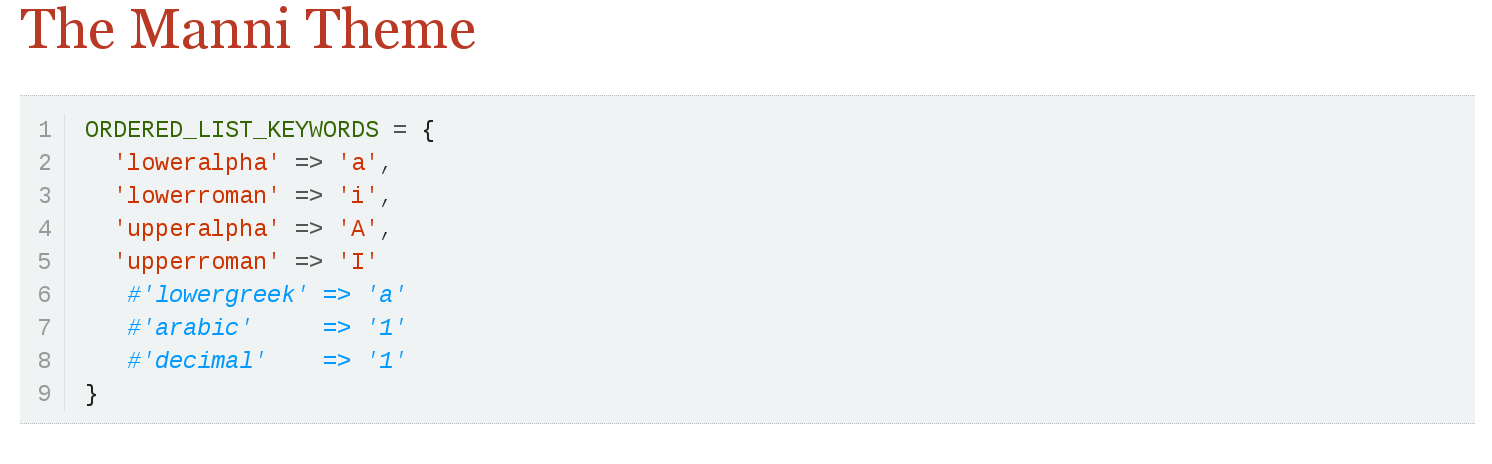
:source-highlighter: pygments
:pygments-style: manni
:pygments-linenums-mode: inline

[source,ruby,linenums]
----
ORDERED_LIST_KEYWORDS = {
  'loweralpha' => 'a',
  'lowerroman' => 'i',
  'upperalpha' => 'A',
  'upperroman' => 'I'
   #'lowergreek' => 'a'
   #'arabic'     => '1'
   #'decimal'    => '1'
}
----
46.5.1. Highlight Select Lines
Not to be confused with syntax highlighting, you can configure Pygments to highlight (i.e., emphasize) select lines in order to call attention to them. This feature is activated on a source block if the highlight attribute is defined.
The highlight attribute accepts a comma or semi-colon delimited list of line ranges.
A line range is represented by two numbers separated by a double period (e.g., 2..5).
These numbers correspond to the line numbers of the source block, inclusive, where the first line is 1.
:source-highlighter: pygments

[source,ruby,highlight=2..5]
----
ORDERED_LIST_KEYWORDS = {
  'loweralpha' => 'a',
  'lowerroman' => 'i',
  'upperalpha' => 'A',
  'upperroman' => 'I',
}
----
46.5.2. Available Pygments style names
To list the available Pygments styles, run the following command in a terminal:
$ $(dirname $(gem which pygments.rb))/../vendor/pygments-main/pygmentize -L styles
The pygments.rb gem uses a bundled version of Pygments (often ahead of the latest release).
This command ensures that you are invoking the pygmentize command from the Pygments used by that gem.
46.5.3. Using a custom Pygments installation
If you already have Pygments installed on your system, you want to use your own fork, or you want to customize how Pygments is configured, you can get Asciidoctor to use a custom version of Pygments instead of the one bundled with the pygments.rb gem.
First, install your own version of Pygments. You can do this, for instance, by cloning the upstream Pygments repository:
$ hg clone https://bitbucket.org/birkenfeld/pygments-main pygments
Find the directory that contains the file pygmentize or the Makefile. That’s your Pygments installation path. Make note of it.
Next, create a script to run before invoking Asciidoctor for the first time. Let’s call it pygments_init.rb. Populate the script with the following content:
require 'pygments'

# use a custom Pygments installation (directory that contains pygmentize)
Pygments.start '/path/to/pygments'

# example of registering a missing or additional lexer
#Pygments::Lexer.create name: 'Turtle', aliases: ['turtle'],
# filenames: ['*.ttl'], mimetypes: ['text/turtle', 'application/x-turtle']| You could enhance this script to read the Pygments installation path from an environment variable (or configuration file). |
Now just require this script before your invoke Asciidoctor the first time.
When using the asciidoctor command, pass the script using the -r flag:
$ asciidoctor -r ./pygments_init.rb document.adoc
When using the Asciidoctor API, require the script using require or require_relative:
require 'asciidoctor'
require_relative './pygments_init.rb'

Asciidoctor.convert_file 'document.adoc', safe: :safe
Now Asciidoctor is using your custom installation of Pygments instead of the one bundled with the pygments.rb gem.
46.6. CodeRay
CodeRay is an encoding-aware, syntax highlighter that supports the languages listed below.
C |
C++ |
Clojure |
CSS |
Delphi |
diff |
ERB |
Go |
Groovy |
HAML |
HTML |
Java |
JavaScript |
JSON |
Lua |
PHP |
Python |
Ruby |
Sass |
SQL |
Taskpaper |
XML |
YAML |
In order to use CodeRay with Asciidoctor, you need the coderay RubyGem. You can use one of the following methods to install CodeRay.
- Install using
gem(all systems) -
$ gem install coderay
- Install using
apt-get(Debian-based systems) -
$ sudo apt-get install coderay
- Install using
dnf(Fedora-based systems) -
$ sudo dnf install rubygem-coderay
Once you’ve installed the RubyGem, assign the coderay value to the source-highlighter attribute in the document header to activate it.
:source-highlighter: coderayYou can further customize the source block output with additional CodeRay attributes.
- coderay-css
-
Controls what method is used for applying CSS to the tokens. Can be
classorstyle. Default:class. - coderay-linenums-mode
-
Controls how line numbers are laid out. Can be
tableorinline. If line wrapping is enabled on preformatted blocks (i.e.,prewrap), and you want to use line numbering on source blocks, you must set the value of this attribute toinlinein order for the numbers to line up properly with their target lines. Default:table.
:source-highlighter: coderay
:coderay-linenums-mode: inline

[source,ruby,linenums]
----
ORDERED_LIST_KEYWORDS = {
  'loweralpha' => 'a',
  'lowerroman' => 'i',
  'upperalpha' => 'A',
  'upperroman' => 'I'
   #'lowergreek' => 'a'
   #'arabic'     => '1'
   #'decimal'    => '1'
}
----
See the CodeRay stylesheet section to learn about the coderay-css attribute.
46.6.1. Highlight Select Lines
Not to be confused with syntax highlighting, you can configure CodeRay to highlight (i.e., emphasize) select lines in order to call attention to them. This feature is activated on a source block if the following conditions are met:
-
Line numbering is enabled (i.e., the
linenumsoption). (In CodeRay, the highlight feature is coupled with line numbering). -
The highlight attribute is defined.
The highlight attribute accepts a comma or semi-colon delimited list of line ranges.
A line range is represented by two numbers separated by a double period (e.g., 2..5).
These numbers correspond to the line numbers of the source block, inclusive, where the first line is 1.
:source-highlighter: coderay

[source,ruby,linenums,highlight=2..5]
----
ORDERED_LIST_KEYWORDS = {
  'loweralpha' => 'a',
  'lowerroman' => 'i',
  'upperalpha' => 'A',
  'upperroman' => 'I',
}
----
46.7. highlight.js
Highlight.js is a popular client-side syntax highlighter that supports a broad range of languages.
To use highlight.js, simply add the following attribute entry to the header of your AsciiDoc file:
:source-highlighter: highlightjsBy default, Asciidoctor will link to the highlight.js library and stylesheet hosted on cdnjs (currently version 9.15.10). The version of the highlight.js library Asciidoctor loads from the CDN only includes support for languages in the common language bundle (apache, bash, coffeescript, cpp, cs, css, diff, http, ini, java, javascript, json, makefile, markdown, nginx, objectivec, perl, php, properties, python, ruby, shell, sql, xml, and yaml).
To load additional languages supported by highlight.js, list them in the value of the highlightjs-languages document attribute (separated by commas):
:source-highlighter: highlightjs
:highlightjs-languages: rust, swift
If you’d rather use a personal copy of highlight.js instead of the one hosted on the CDN, follow these steps:
-
Create your custom bundle on the download page.
-
Download and unpack the zip into a folder called highlight adjacent to your AsciiDoc file (or in the output directory, if different)
-
Rename highlight/highlight.pack.js to highlight/highlight.min.js
-
Rename highlight/styles/github.css to highlight/styles/github.min.css
-
Replace
githubwith the name of thehighlightjs-themeyou are using, if different.
-
-
Add the attribute entry
:highlightjsdir: highlightto the header of your AsciiDoc file.-
Alternatively, you can pass the
-a highlightjsdir=highlightflag when invoking the Asciidoctor CLI.
-
The output file will use your personal copy of the highlight.js library and stylesheet instead of the one hosted on cdnjs.