14. Header
The document header is a special set of contiguous lines at the start of the document that encapsulates the document title, author and revision information, and document attributes (either built-in or user-defined), all optional.
The document header must not contain any blank lines or block content!
The header typically begins with a document title (i.e., level-0 section title), though this element is optional. If a document title is specified, it may be immediately followed by two optional lines with a predefined format that define the author and revision information. Finally, the header may declare document attributes (built-in or user-defined) using attribute entries.
Since the document title is optional, it’s possible for the header to only consist of attribute entries. No other section level (e.g., a level-1 section title) can define the document header.
Document attribute entries may be placed anywhere in the header, including above the document title. However, the preferred style is to place them immediately below the document title, author line, and revision line, if present. Where these attribute entries cannot be placed is after a blank line or below a level-1 section title since that falls outside the document header.
The first block content (e.g., a paragraph, a delimited block, a level-1 section title, etc) or a blank line in the document marks the end of the header. Line comments may be used in the header, but only if those lines are directly adjacent to other lines in the header. Any attributes defined below the document header will be scoped to the document, but not the document header.
The header is optional when the doctype is article or book.
However, a header is required when the document type is manpage.
The requirements for a manual page (man page) are described in the man pages section.
The header (document title, author, and revision information) is included by default when converting to a standalone document.
If you do not want the header of a document to be displayed, set the noheader attribute in the document’s header (or set the attribute using the API or CLI).
Now let’s explore the document title in detail.
14.1. Document Title
The document title resembles a level-0 section title, which is written using a single equal sign followed by at least one space (i.e., = ), then the text of the title.
The document title must be the first level-0 section title in the document.
The only content permitted above the document title are blank lines, comment lines and document-wide attribute entries.
Here’s an example of a document title followed by a short paragraph. Notice the blank line between the document title and the first line of prose. That blank line is what offsets the document header from the body.
= The Dangerous and Thrilling Documentation Chronicles

This journey begins on a bleary Monday morning.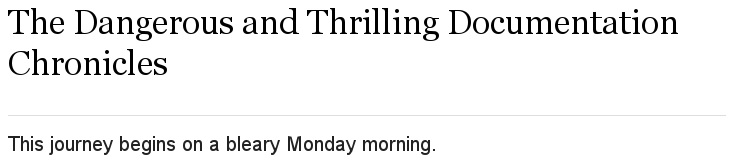
When the doctype is article or manpage, the document can only have one level-0 section title.
In contrast, the book document type permits multiple level-0 section titles.
When the doctype is book, the first level-0 section title, located in the header, is the document’s title and subsequent level-0 section titles are the part titles.
14.1.1. doctitle attribute
A document’s title is assigned to the built-in doctitle attribute.
The doctitle attribute can be referenced anywhere in a document and resolves to the document’s title when displayed.
= The Dangerous and Thrilling Documentation Chronicles

{doctitle} begins on a bleary Monday morning.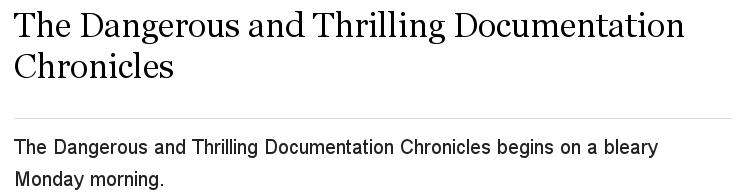
The doctitle attribute can also be used to set the document title instead of using a level-0 section title.
However, the attribute must still be set in the document header.
14.1.2. Document subtitle
Asciidoctor recognizes a subtitle in the primary level-0 heading.
If the primary title contains at least one colon followed by a space (i.e, : ), Asciidoctor treats the text after the final colon-space sequence as the subtitle.
The subtitle is not distinguished from the main title in the html5 output.
It’s only distinguished from the main title when using the docbook, epub3, and pdf converters.
|
= The Dangerous and Thrilling Documentation Chronicles: A Tale of Caffeine and Words

It began on a bleary Monday morning.
In this example, the following is true:
| Main title |
The Dangerous and Thrilling Documentation Chronicles |
| Subtitle |
A Tale of Caffeine and Words |
= A Cautionary Tale: The Dangerous and Thrilling Documentation Chronicles: A Tale of Caffeine and Words

It began on a bleary Monday morning.
In this example, the following is true:
| Main title |
A Cautionary Tale: The Dangerous and Thrilling Documentation Chronicles |
| Subtitle |
A Tale of Caffeine and Words |
Instead of using a colon followed by a space as the separator characters between the main title and the subtitle, you can specify a custom separator using the title-separator attribute.
:title-separator: {sp}|
= The Dangerous and Thrilling Documentation Chronicles | A Tale of Caffeine and Words

It began on a bleary Monday morning.
Note that a space is always appended to the value of the title-separator (making the default value of the title-separator effectively a single colon).
Asciidoctor also provides an API for extracting the title and subtitle. See the API docs for the Document::Title for more information. Support for subtitle functionality for other sections is being considered. Refer to issue #1493.
14.1.3. Document title visibility
You can control whether or not the document title appears in the converted document using the showtitle attribute.
When converting a standalone document, the document title is shown by default.
If you don’t want the title to be shown in this case, unset the showtitle attribute using showtitle! in the document header or via the CLI or API.
When converted to an embeddable document, the document title is not shown by default.
If you want the title to be shown, set the showtitle attribute in the document header or via the CLI or API.
The author and revision information is not shown below the document title in the embeddable version of the document like it is in the standalone document, even when the showtitle attribute is set.
Let’s look at how to add additional metadata to the document header, including an author and her email address.
14.2. Author and Email
The author of a document is listed on the line beneath the document’s title. An optional email address or URL can follow an author’s name inside angle brackets.
Let’s add an author with her email address to the document below.
= The Dangerous and Thrilling Documentation Chronicles
Kismet Rainbow Chameleon <kismet@asciidoctor.org>

This journey begins...

== About the Author

You can contact {author} at {email}.
{firstname} loves to hear from other chroniclers.

P.S. And yes, my middle name really is {middlename}.
What else would you expect from a member of the Rocky Mountain {lastname} Clan?

{authorinitials}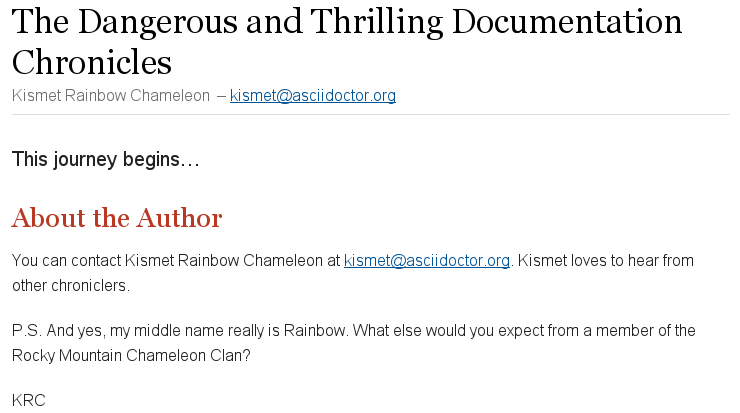
As you can see in the example above, Asciidoctor uses the author’s name and email to assign values to a number of built-in attributes that can be used throughout the document’s body. These attributes include:
author-
The author’s full name, which includes all of the characters or words prior to a semicolon (
;), angle bracket (<) or the end of the line. firstname-
The first word in the author attribute.
lastname-
The last word in the author attribute.
middlename-
If a firstname and lastname are present, any remaining words or characters found between these attributes are assigned to the middlename attribute.
authorinitials-
The first character of the firstname, middlename, and lastname attributes.
email-
An email address, delimited by angle brackets (
<>).
If one or more of the author’s names consists of more than one word, use an underscore (_) between the words you want to adjoin.
For example, the author of the following document has a compound last name.
= The Unbearable Lightness of Nomenclature
Jan Hendrik van_den_Berg

My first name is {firstname}.

My middle name is {middlename}.

My last name is {lastname}.

My initials are {authorinitials}.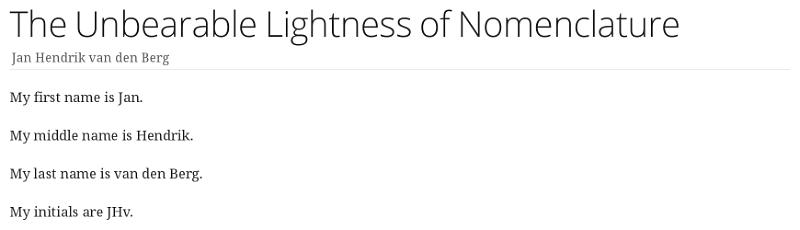
Alternatively, the author and email attributes can be set explicitly in the header.
= The Dangerous and Thrilling Documentation Chronicles
:author: Kismet Rainbow Chameleon
:email: kismet@asciidoctor.org

This journey begins...

== About the Author

You can contact {author} at {email}.
{firstname} loves to hear from other chroniclers.

P.S. And yes, my middle name really is {middlename}.
What else would you expect from a member of the Rocky Mountain {lastname} Clan?

{authorinitials}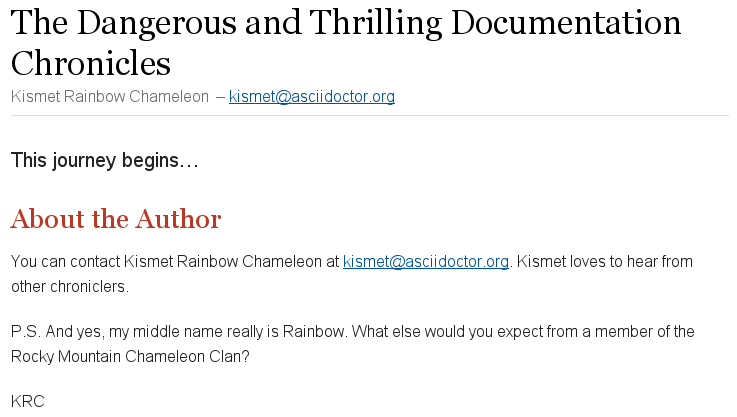
The html5 and docbook converters can convert documents with multiple authors.
Multiple authors and their emails are separated by semicolons (;) when they’re listed on the same line.
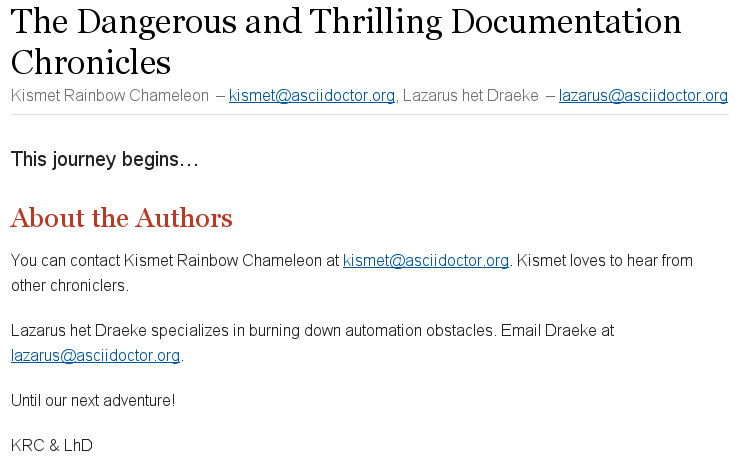
= The Dangerous and Thrilling Documentation Chronicles
Kismet Rainbow Chameleon <kismet@asciidoctor.org>; Lazarus het_Draeke <lazarus@asciidoctor.org>

This journey begins...

== About the Authors

You can contact {author} at {email}.
{firstname} loves to hear from other chroniclers.

{author_2} specializes in burning down automation obstacles. (1)
Email {lastname_2} at {email_2}.

Until our next adventure!

{authorinitials} & {authorinitials_2}| 1 | To reference the additional authors in the document body, the author attributes are appended with an underscore (_) followed by the position of the author in the author information list (i.e. Lazarus het Draeke is the second author in the list so his author attributes are appended with a 2). |
14.2.1. Attribute references in the author line
The implicit author line was not intended to support arbitrary placement of attribute references. While attribute references are replaced in the author line (as part of the header substitution group), they aren’t substituted until after the line is parsed. This ordering can sometimes produce undesirable or surprising results. It’s best to use the author line strictly as a shorthand for defining a fixed author and email.
If you do need to use attribute references in the author or email value, you should revert to defining the attributes explicitly using attribute entries.
= Document Title
:author_name: ACME Industries
:author_email: info@acme.com
:author: {author_name}
:email: {author_email}
Just remember that the author line is for static text. Once you graduate beyond static text, you should switch to using attribute entries to define the built-in author attributes, which will give you much more power.
14.3. Revision Number, Date and Remark
The revision information is read from the third (non-attribute) line of the header, beneath the author information line. A document’s revision information has slots for three implicit attributes.
revnumber
|
The document’s version number.
In order to be recognized, the version number must contain at least one numeric character.
Any letters or symbols preceding the numeric character are ignored.
If the implicit |
revdate
|
The date the document version was completed.
When the |
revremark
|
Information about this version of the document. |
Here’s an example of a revision line.
= The Dangerous and Thrilling Documentation Chronicles
Kismet Chameleon <kismet@asciidoctor.org>
v1.0, October 2, 2013: First incarnation   (1) (2) (3)

This journey begins...

== Colophon

Version: {revnumber}

Version Date: {revdate}

Version Notes: {revremark}| 1 | revnumber and revdate must be separated by a comma (,). |
| 2 | revdate can contain words, letters, numbers, and symbols. |
| 3 | The revremark attribute must be preceded by a colon (:), regardless of whether revnumber or revdate are set. |
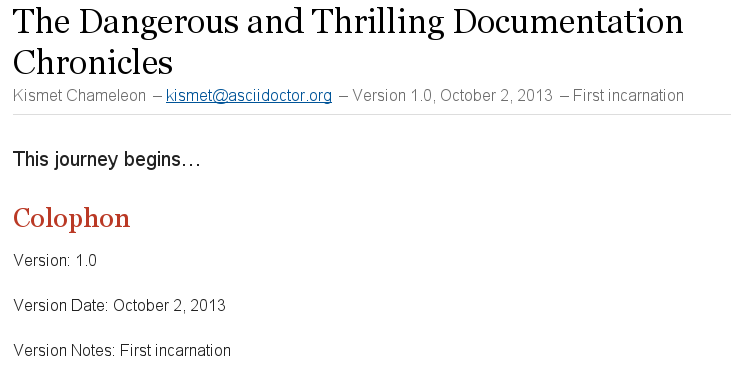
The revnumber in the byline is prefixed by the word Version; however, when referenced in the body of the document, only the numerical value is displayed.
The version-label attribute controls the version number label in the byline.
The revision information attributes can also be explicitly set in the header.
= The Dangerous and Thrilling Documentation Chronicles
Kismet Chameleon <kismet@asciidoctor.org>
:revnumber: 1.0 (1)
:revdate: 10-02-2013
:revremark: The first incarnation of {doctitle} (2)
:version-label!: (3)

This journey begins...

== Colophon

Version: {revnumber}

Version Date: {revdate}

Version Notes: {revremark}| 1 | When explicitly set, any characters preceding the version number are not dropped. |
| 2 | The revremark can contain attribute references. |
| 3 | The version-label attribute is unset so that the word Version does not precede the revnumber in the byline. |
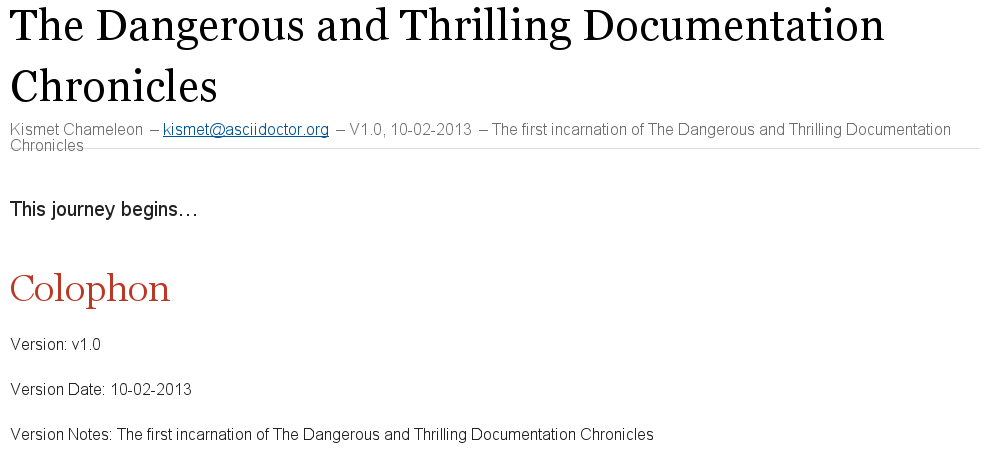
In the converted document, notice that the V preceding the revnumber is capitalized in the byline but not when the attribute is referenced in the body of the document.
| Revision extraction information and an extraction example are pending. |
14.4. Subtitle Partitioning
By default, the document title is separated into a main title and subtitle using the industry standard, a colon followed by a space.
| As of Asciidoctor 1.5.2, subtitle partitioning is not implemented in the HTML 5 backend. |
= Main Title: SubtitleThe separator is searched from the end of the text. Therefore, only the last occurrence of the separator is used for partitioning the title.
= Main Title: Main Title Continued: SubtitleYou can modify the title separator by specifying the separator block attribute explicitly above the document title (since Asciidoctor 1.5.3).
Note that a space will automatically be appended to the separator value.
[separator=::]
= Main Title:: Subtitle
You can also set the separator using a document attribute, either in the document:
= Main Title:: Subtitle
:title-separator: ::
or from the API or CLI (shown here):
$ asciidoctor -a title-separator=:: document.adoc
You can partition the title from the API when calling the doctitle method on Document:
title_parts = document.doctitle partition: true
puts title_parts.title
puts title_parts.subtitle
You can partition the title in an arbitrary way by passing the separator as a value to the partition option. In this case, the partition option both activates subtitle partitioning and passes in a custom separator.
title_parts = document.doctitle partition: '::'
puts title_parts.title
puts title_parts.subtitle
14.5. Metadata
Document metadata, such as a description of the document, keywords, and the title, can be assigned to attributes in the header.
When converted to HTML, the values of these attributes will correspond to tags contained in the <head> section of an HTML document.
14.5.1. Description
You can include a description of the document using the description attribute.
= The Dangerous and Thrilling Documentation Chronicles
Kismet Rainbow Chameleon <kismet@asciidoctor.org>; Lazarus het_Draeke <lazarus@asciidoctor.org>
:description: A story chronicling the inexplicable hazards and vicious beasts a \ (1)
documentation team must surmount and vanquish on their journey to finding an \
open source project's true power.

This journey begins on a bleary Monday morning.| 1 | If the document’s description is long, you can break the attribute’s value across several lines by ending each line with a backslash \ that is preceded by a space. |
When converted to HTML, the document description value is assigned to the HTML <meta> tag.
<!DOCTYPE html>
<html lang="en">
<head>
<meta http-equiv="Content-Type" content="text/html; charset=UTF-8">
<meta name="generator" content="Asciidoctor 1.5.6.2">
<meta name="viewport" content="width=device-width, initial-scale=1.0">
<meta name="description" content="A story chronicling the inexplicable hazards and vicious beasts a documentation team must surmount and vanquish on their journey to finding an open source project's true power.">
<title>The Dangerous and Thrilling Documentation Chronicles</title>
<style>
14.5.2. Keywords
The keywords attribute contains a list of comma separated values that are assigned to the HTML <meta> tag.
= The Dangerous and Thrilling Documentation Chronicles
Kismet Rainbow Chameleon <kismet@asciidoctor.org>; Lazarus het_Draeke <lazarus@asciidoctor.org>
:keywords: documentation, team, obstacles, journey, victory

This journey begins on a bleary Monday morning.<!DOCTYPE html>
<html lang="en">
<head>
<meta http-equiv="Content-Type" content="text/html; charset=UTF-8">
<meta name="generator" content="Asciidoctor 1.5.6.1">
<meta name="viewport" content="width=device-width, initial-scale=1.0">
<meta name="keywords" content="documentation, team, obstacles, journey, victory">
<title>The Dangerous and Thrilling Documentation Chronicles</title>
<style>14.5.3. Alternate Title
By default, Asciidoctor uses the text of the document title as the value of the HTML <title> tag.
You can override this behavior by setting the title attribute in the document header.
14.5.4. Custom Metadata, Styles and Functions
You can add content, such as custom metadata, stylesheet, and script information, to the header of the output document using docinfo (“document information”) files. The docinfo file section details what these files can contain and how to use them.
14.6. Header Summary
| Attribute | Values | Description | Notes | Converters |
|---|---|---|---|---|
|
Author’s full name |
all |
||
|
First character of each word in the |
all |
||
|
Text describing the document |
html |
||
|
Adds content from a docinfo file to header |
html, docbook |
||
|
Text entered by user |
Title of document |
Identical to the value returned by |
all |
|
Email address |
all |
||
|
First word of |
all |
||
|
A list of comma-separated values that describe the document |
html |
||
|
Last word of |
all |
||
|
Middle word of |
all |
||
|
Generate an embeddable document; exclude the document frame |
all |
||
|
Suppresses the output of the header |
all |
||
|
Suppresses the output of the footer |
all |
||
|
Toggles the display of a document’s title |
all |
||
|
Date of document version |
all |
||
|
Version number of the document |
all |
||
|
Version comments |
all |
||
|
Toggles the display of an embedded document’s title |
all |
||
|
Alternative title of the document |
html |
||
|
|
The label preceding the |
html |