29. Images
To include an image on its own line (i.e., a block image), use the image:: prefix in front of the file name and square brackets after it.
image::sunset.jpg[]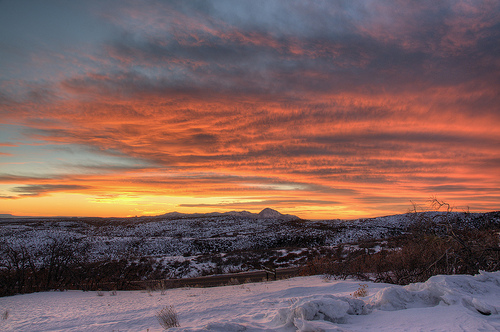
If you want to specify alt text, include it inside the square brackets:
image::sunset.jpg[Sunset]You can also give the image an id, a title, set its dimensions and make it a link.
[#img-sunset] (1)
.A mountain sunset (2)
[link=https://www.flickr.com/photos/javh/5448336655] (3)
image::sunset.jpg[Sunset,300,200] (4) (5)| 1 | Assigns an ID to the block; see Defining an Anchor. |
| 2 | Defines the title of the block image, which gets displayed underneath the image when rendered. |
| 3 | link makes the image a link (this can also be defined inside the attribute list of the block macro) |
| 4 | The first positional attribute, Sunset, is the image’s alt text. |
| 5 | The second and third positional attributes define the width and height, respectively. |
Block images are prefixed by a caption label (Figure) and number automatically.
To turn off figure caption labels and numbers, add the figure-caption attribute to the document header and unset it.
:figure-caption!:
If you want to include an image inline, use the image: prefix instead (notice there is only one colon):
Click image:icons/play.png[Play, title="Play"] to get the party started.

Click image:icons/pause.png[title="Pause"] when you need a break.
Click  to get the party started.
Click  when you need a break.
For inline images, the optional title is displayed as a tooltip.
29.1. Setting the Location of Images
The path to the location of images is controlled by the imagesdir document attribute.
The value of this attribute (empty by default) is added to the beginning of every image target.
Therefore, you never need to reference this attribute.
You only need to set it.
image::{imagesdir}/name-of-image.png[]image::name-of-image.png[]The resolved location of the image will be: <imagesdir> + <target>.
The benefit of the processor adding the value of the imagesdir attribute to the start of all image targets is that you can globally control the folder where images are located per converter.
We refer to this folder as the image catalog.
Since different output formats require the images to be in different locations, this attribute makes it possible to accomodate many different scenarios.
We recommend relying on the imagesdir attribute when defining the target of your image to avoid hard-coding that common path in every single image macro. Always think about where the image is relative to the image catalog.
The imagesdir attribute value can be an absolute path, relative path or URI. By default, the value of the imagesdir attribute is empty, which means these images are resolved relative to the document. If the image target is an absolute path or URI, the imagesdir prefix is not added to the path.
| You can set the imagesdir attribute in multiple places in your document, as long as it is not locked by the API. This technique is useful if you store images for different parts, chapters, or sections of your document in different locations. |
29.1.1. Include Images by Full URL
Asciidoctor supports remote (i.e., images with a URL target) block and inline images. You can reference images served from any URL (e.g., your blog, an image hosting service, your docs server, etc.) and never have to worry about downloading the images and putting them somewhere locally.
Here are a few examples of images that have a URL target:
image::https://upload.wikimedia.org/wikipedia/commons/3/35/Tux.svg[Tux,250,350]
You can find image:https://upload.wikimedia.org/wikipedia/commons/3/35/Tux.svg[Linux,25,35] everywhere these days.You can find everywhere these days.
| The value of imagesdir is ignored when the image target is a URI. |
If you want to avoid typing the URL prefix for every image, and all the images are located on the same server, you can use the imagesdir attribute to set the base URL:
:imagesdir-old: {imagesdir}
:imagesdir: https://upload.wikimedia.org/wikipedia/commons

image::3/35/Tux.svg[Tux,250,350]

:imagesdir: {imagesdir-old}
This time, the imagesdir is used since the image target is not a URL (the imagesdir just happens to be one).
| This feature is included in the AsciiDoc compatibility file so that AsciiDoc gets it right too. |
29.2. Putting Images in Their Place
Images are a great way to enhance the text, whether to illustrate an idea, show rather than tell, or just help the reader connect with the text.
Out of the box, images and text behave like oil and water. Images don’t like to share space with text. They are kind of “pushy” about it. That’s why we focused on tuning the controls in the image macros so you can get the images and the text to flow together.
There are two approaches you can take when positioning your images:
-
Named attributes
-
Roles
29.2.1. Positioning attributes
Asciidoctor supports the align attribute on block images to align the image within the block (e.g., left, right or center).
The named attribute float can be applied to both the block and inline image macros.
Float pulls the image to one side of the page or the other and wraps block or inline content around it, respectively.
Here’s an example of a floating block image. The paragraphs or other blocks that follow the image will float up into the available space next to the image. The image will also be positioned horizontally in the center of the image block.
image::tiger.png[Tiger,200,200,float="right",align="center"]Here’s an example of a floating inline image. The image will float into the upper-right corner of the paragraph text.
image:linux.png[Linux,150,150,float="right"]
You can find Linux everywhere these days!
When you use the named attributes, CSS gets added inline (e.g., style="float: left").
That’s bad practice because it can make the page harder to style when you want to customize the theme.
It’s far better to use CSS classes for these sorts of things, which map to roles in AsciiDoc terminology.
29.2.2. Positioning roles
Here are the examples from above, now configured to use roles that map to CSS classes in the default Asciidoctor stylesheet:
[.right.text-center]
image::tiger.png[Tiger,200,200]image:sunset.jpg[Sunset,150,150,role="right"] What a beautiful sunset!The following table lists all the roles available out of the box for positioning images.
| Float | Align | ||||
|---|---|---|---|---|---|
Role |
left |
right |
text-left |
text-right |
text-center |
Block Image |
|||||
Inline Image |
|||||
Merely setting the float direction on an image is not sufficient for proper positioning. That’s because, by default, no space is left between the image and the text. To alleviate this problem, we’ve added sensible margins to images that use either the positioning named attributes or roles.
If you want to customize the image styles, perhaps to customize the margins, you can provide your own additions to the stylesheet (either by using your own stylesheet that builds on the default stylesheet or by adding the styles to a docinfo file).
The shorthand syntax for a role (.) can not yet be used with image styles.
|
29.2.3. Framing roles
It’s common to frame the image in a border to further offset it from the text.
You can style any block or inline image to appear as a thumbnail using the thumb role (or th for short).
The thumb role doesn’t alter the dimensions of the image.
For that, you need to assign the image a height and width.
|
Here’s a common example for adding an image to a blog post. The image floats to the right and is framed to make it stand out more from the text.
image:logo.png[role="related thumb right"] Here's text that will wrap around the image to the left.Notice we added the related role to the image.
This role isn’t technically required, but it gives the image semantic meaning.
29.2.4. Control the float
When you start floating images, you may discover that too much content is floating around the image.
What you need is a way to clear the float.
That is provided using another role, float-group.
Let’s assume that we’ve floated two images so that they are positioned next to each other and we want the next paragraph to appear below them.
[.left]
.Image A
image::a.png[A,240,180]

[.left]
.Image B
image::b.png[B,240,180,title="Image B"]

Text below images.
When this example is converted, then viewed a browser, the paragraph text appears to the right of the images. To fix this behavior, you just need to “group” the images together in a block with self-contained floats. Here’s how it’s done:
[.float-group]
--
[.left]
.Image A
image::a.png[A,240,180]

[.left]
.Image B
image::b.png[B,240,180]
--

Text below images.
This time, the text will appear below the images where we want it.
29.3. Sizing Images
Since images often need to be sized according to the medium, there are several ways to specify an image size.
In most output formats, the specified width is obeyed unless the image would exceed the content width or height, in which case it scaled to fit while maintaining the original aspect ratio (i.e., responsive scaling).
29.3.1. width and height
The primary way to specify the size of an image is to define the width and height attributes on the image macro.
Since these two attributes are so common, they are the second and third (unnamed) positional attributes on the image macros.
image::flower.jpg[Flower,640,480]That’s equivalent to the long-hand version:
image::flower.jpg[alt=Flower,width=640,height=480]While the values of width and height can be used to scale the image, these attributes are primarily intended to specify the intrinsic (or faux-intrinsic, aka too-lazy-to-resize) size of the image in CSS pixels.[1]
The width and height attributes are mapped to attributes of the same name on the <img> element in the HTML output.
These attributes are important because they provide a hint to the browser to tell it how much space to reserve for the image during layout to minimize page reflows.
29.3.2. pdfwidth
Asciidoctor recognizes the following attributes to size images when converting to PDF using Asciidoctor PDF:
-
pdfwidth- The preferred width of the image in the PDF when converting using Asciidoctor PDF.
The pdfwidth attribute accepts the following units:
| px |
Output device pixels (assumed to be 96 dpi) |
| pt (or none) |
Points (1/72 of an inch) |
| pc |
Picas (1/6 of an inch) |
| cm |
Centimeters |
| mm |
Millimeters |
| in |
Inches |
| % |
Percentage of the content width (area between margins) |
| vw |
Percentage of the page width (edge to edge) |
If pdfwidth is not provided, Asciidoctor PDF also accepts scaledwidth, or width (no units, assumed to be pixels), in that order.
See image scaling in Asciidoctor PDF for more details.
29.3.3. scaledwidth
Asciidoctor recognizes the following attributes to size images when converting to PDF using the DocBook toolchain:
-
scaledwidth- The preferred width of the image when converting to PDF using the DocBook toolchain. (mutually exclusive with scale) -
scale- Scales the original image size by this amount when converting to PDF using the DocBook toolchain (mutually exclusive with scaledwidth).
scaledwidth sizes images much like pdfwidth, except it does not accept the vw unit.
The value of scaledwidth when used with DocBook can have the following units:
| px |
Output device pixels (assumed to be 72 dpi) |
| pt |
Points (1/72 of an inch) |
| pc |
Picas (1/6 of an inch) |
| cm |
Centimeters |
| mm |
Millimeters |
| in |
Inches |
| em |
Ems (current font size) |
| % (or none) |
Percentage of intrinsic image size |
DocBook also accepts the width attribute if scaledwidth is not provided.
29.3.4. Image Sizing Recap
| Backend | Absolute size | Relative to original size | Relative to content width | Relative to page width |
|---|---|---|---|---|
html |
width=120 |
Not possible |
width=50% |
Not possible |
pdfwidth=100mm |
Not possible |
pdfwidth=80% |
pdfwidth=50vw |
|
docbook |
scaledwidth=100mm |
scale=80 |
scaledwidth=50% |
Not possible |
Here’s an example of how you might bring these attributes together to control the size of an image in various output formats:
image::flower.jpg[Flower,640,480,pdfwidth=50%,scaledwidth=50%]A practice you might consider is using attributes to set the values for each output:
ifdef::backend-html5[]
:twoinches: width='144'
:full-width: width='100%'
:half-width: width='50%'
:half-size:
:thumbnail: width='60'
endif::[]
ifdef::backend-pdf[]
:twoinches: pdfwidth='2in'
:full-width: pdfwidth='100vw'
:half-width: pdfwidth='50vw'
:half-size: pdfwidth='50%'
:thumbnail: pdfwidth='20mm'
endif::[]
ifdef::backend-docbook5[]
:twoinches: width='50mm'
:full-width: scaledwidth='100%'
:half-width: scaledwidth='50%'
:half-size: width='50%'
:thumbnail: width='20mm'
endif::[]
Then you can specify a half-size image using:
image::image.jpg[{half-size}]In addition to providing consistency across your document, this technique will help insulate you from future changes. For a more detailed example, see this thread on the discussion list.
29.4. Taming SVGs
Both block and inline image macros have built-in support for scalable vector graphics (SVGs). But there’s more than one way to include an SVG into a web page, and the strategy used can effect how the SVG behaves (or misbehaves). Therefore, these macros provide additional options to control how the SVG is included (i.e., referenced).
When the image target is an SVG, the options attribute on the macro accepts one of three values:
-
none (default)
-
interactive
-
inline
The following table demonstrates the impact these options have.
image::sample.svg[Static,300] |

|
image::sample.svg[Interactive,300,opts=interactive] |
Observe that the color changes when hovering over the SVG. |
image::sample.svg[Embedded,300,opts=inline] |
Observe that the color changes when hovering over the SVG. The SVG also inherits CSS from the document stylesheets. |
How the options value works and when it should be used is described below:
| Option | HTML Element Used | Effect | When To Use |
|---|---|---|---|
none (default) |
<img> |
Image is rasterized |
Static image, no interactivity, no custom fonts |
|
<object> |
Image embedded as a live, interactive object (aka “content document”) |
For using CSS animations, scripting, webfonts |
|
<svg> |
The SVG is embedded directly into the HTML itself. |
For using CSS animations, scripting, webfonts, when you require search engines to search the SVG content. To allow SVG content reachable by JavaScript in the main DOM or to inherit styles from the main DOM. |
When using the inline or interactive options, the viewBox attribute must be defined on the root <svg> element in order for scaling to work properly.
When using the inline option, if you specify a width or height on the image macro in AsciiDoc, the width, height and style attributes on the <svg> element will be removed. Additionally, when using inline the primary SVG elements (e.g., <svg>) cannot have a namespace.
If using the interactive option, you must link to the CSS that declares the fonts in the SVG file using an XML stylesheet declaration.
If you’re inserting an SVG using either the inline or interactive options, we strongly recommend you optimize your SVG using a tool like svgo or SVG Editor.
As you work with SVG, you’ll become more comfortable making the decision about which method to employ given the circumstances. It’s only confusing when you first encounter the choice. To learn more about using SVG on the web, consult the online book SVG on the Web: A Practical Guide as well as these articles about SVG.
29.5. Summary
| Attribute | Value(s) | Example Syntax | Comments |
|---|---|---|---|
|
empty, absolute path, relative path or base URL |
|
If the image target is a URL or an absolute path, the |
|
User defined text |
|
|
|
User defined text in first position of attribute list or named attribute |
|
|
|
User defined text |
|
Blocks: title displayed below image; Inline: title displayed as tooltip |
|
User defined text |
|
Only applies to block images. |
|
User defined size in pixels |
|
|
|
User defined size in pixels |
|
|
|
User defined location of external URI |
|
|
|
A scaling factor to apply to the intrinsic image dimensions |
|
DocBook only |
|
User defined width for block images |
|
DocBook only |
|
User defined width for images in a PDF |
|
Asciidoctor PDF only |
|
left, center, right |
|
Block images only; Align and float attributes are mutually exclusive |
|
left, right |
|
Block images only; float and align attributes are mutually exclusive; to scope the float, use a float group. |
|
left, right, th, thumb, related, rel |
|
Inline images can use role to float images left and right; Role shorthand ( |